

Mermaid diagrams
Code in, diagrams out
Write diagrams the way you write code. Describe flows, systems, and timelines in plain text, keep them in version control, and render them into structured visuals. Or let your AI agent do it, with MCP and the Excalidraw CLI.
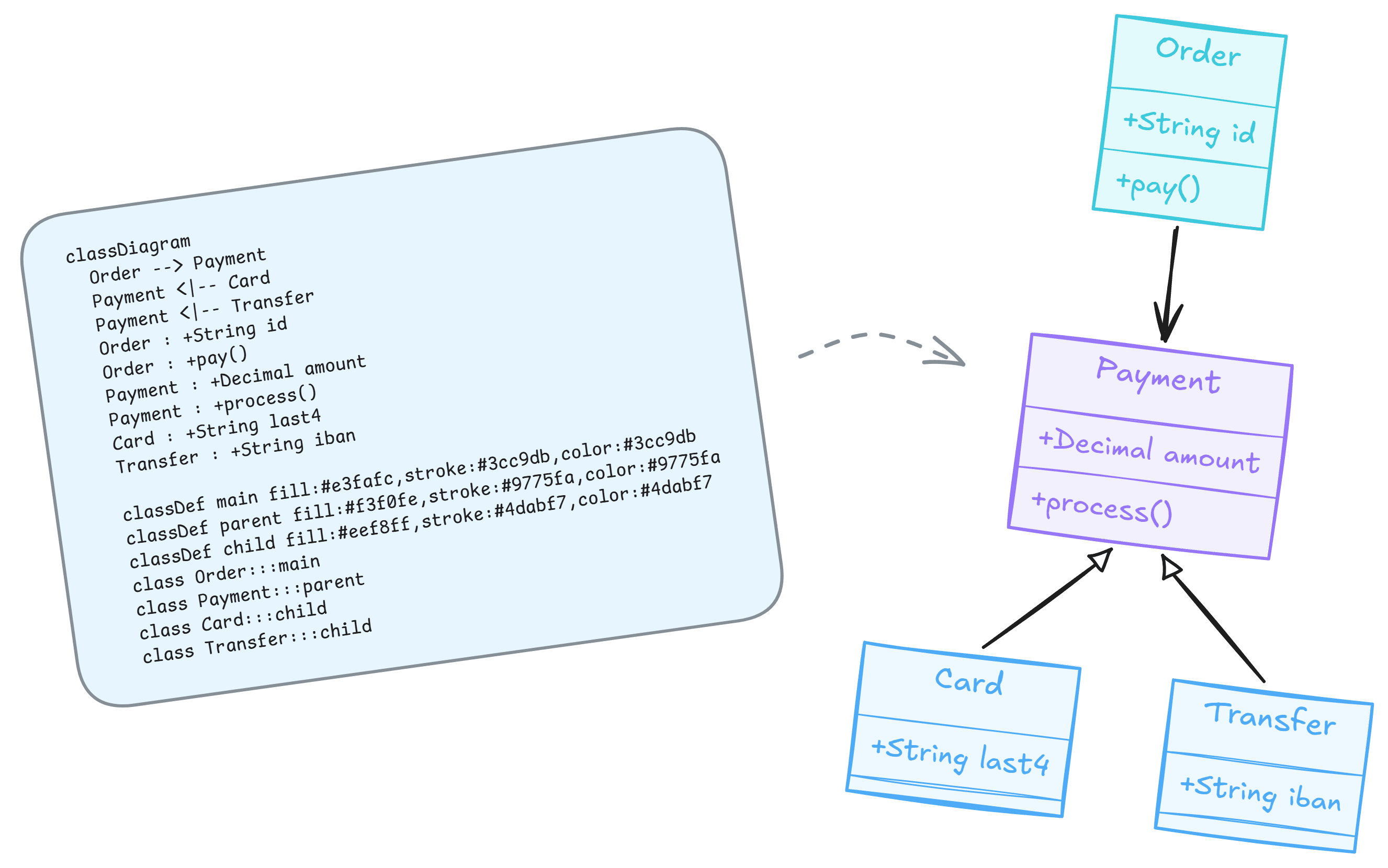
What is a Mermaid diagram?
A Mermaid diagram is a chart or diagram written in plain text with Mermaid, an open-source, JavaScript-based diagramming tool. You describe nodes, connections, and labels in a few lines of code, and Mermaid turns them into a flowchart, sequence diagram, ER diagram, or another visual.
Mermaid is widely supported: GitHub, GitLab, and many documentation tools render it in Markdown. Because diagrams are text-based, they live next to the code, and changes are easier to include and track in pull requests. Because the source is plain, structured text, AI and automation tools read and write it easily.
Mermaid diagram types
Mermaid supports a long list of diagram types, from flowcharts to mind maps and pie charts. Here are five common ones, and some tips on how to create them.
Flowcharts
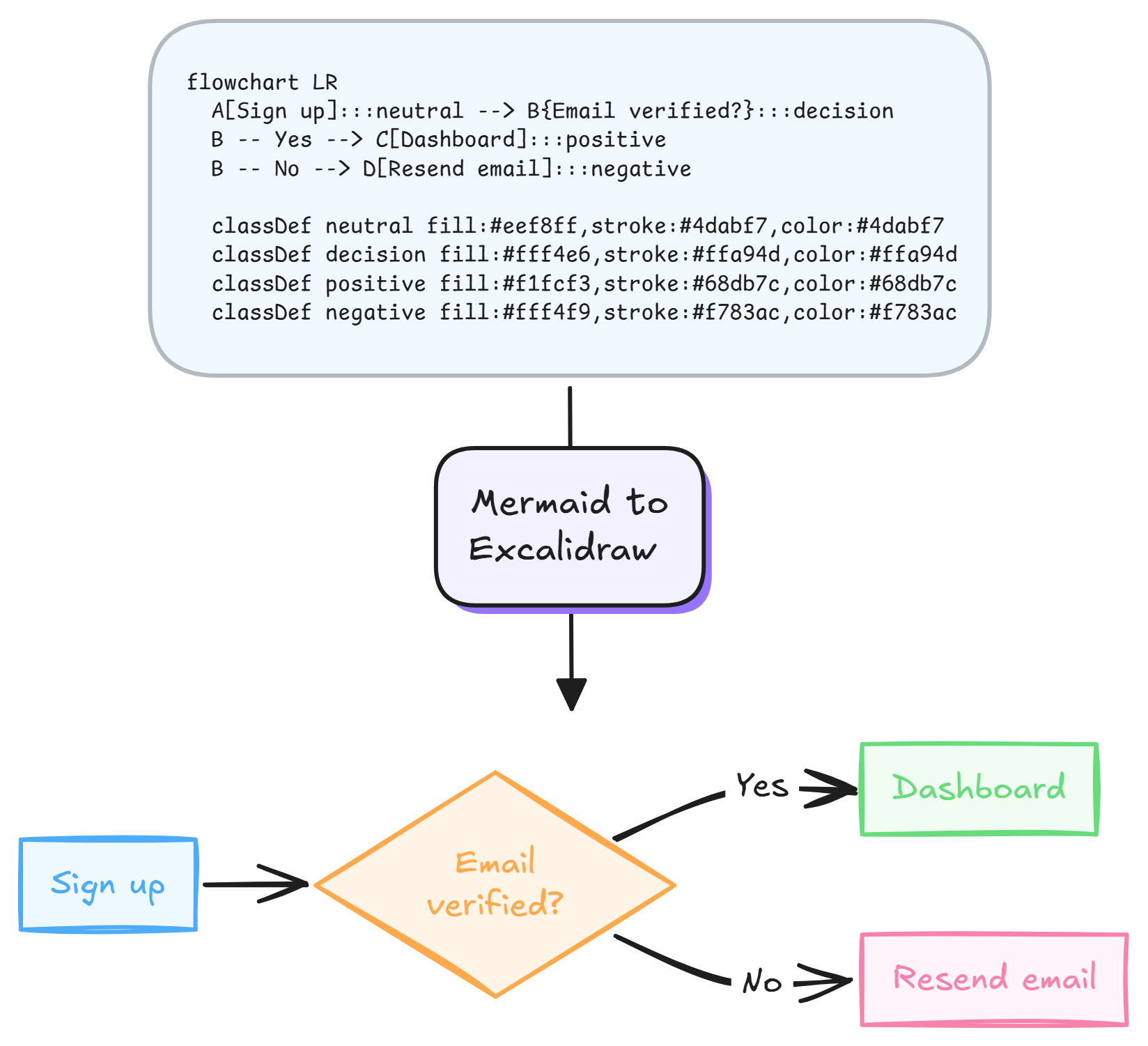
Flowcharts show steps, decisions, and the paths between them. Use them for onboarding flows, CI/CD pipelines, error handling, or any process with more than one possible outcome.
How to create flowcharts in Mermaid?
Start with flowchart plus a direction, like TD (top-down) or LR (left to right), and connect nodes with arrows. Brackets set the node shape: [ ] for a rectangle, { } for a decision, and ( ) for rounded edges.
Our example:
1flowchart LR2 A[Sign up] --> B{Email verified?}3 B -- Yes --> C[Dashboard]4 B -- No --> D[Resend email]
Sequence diagrams
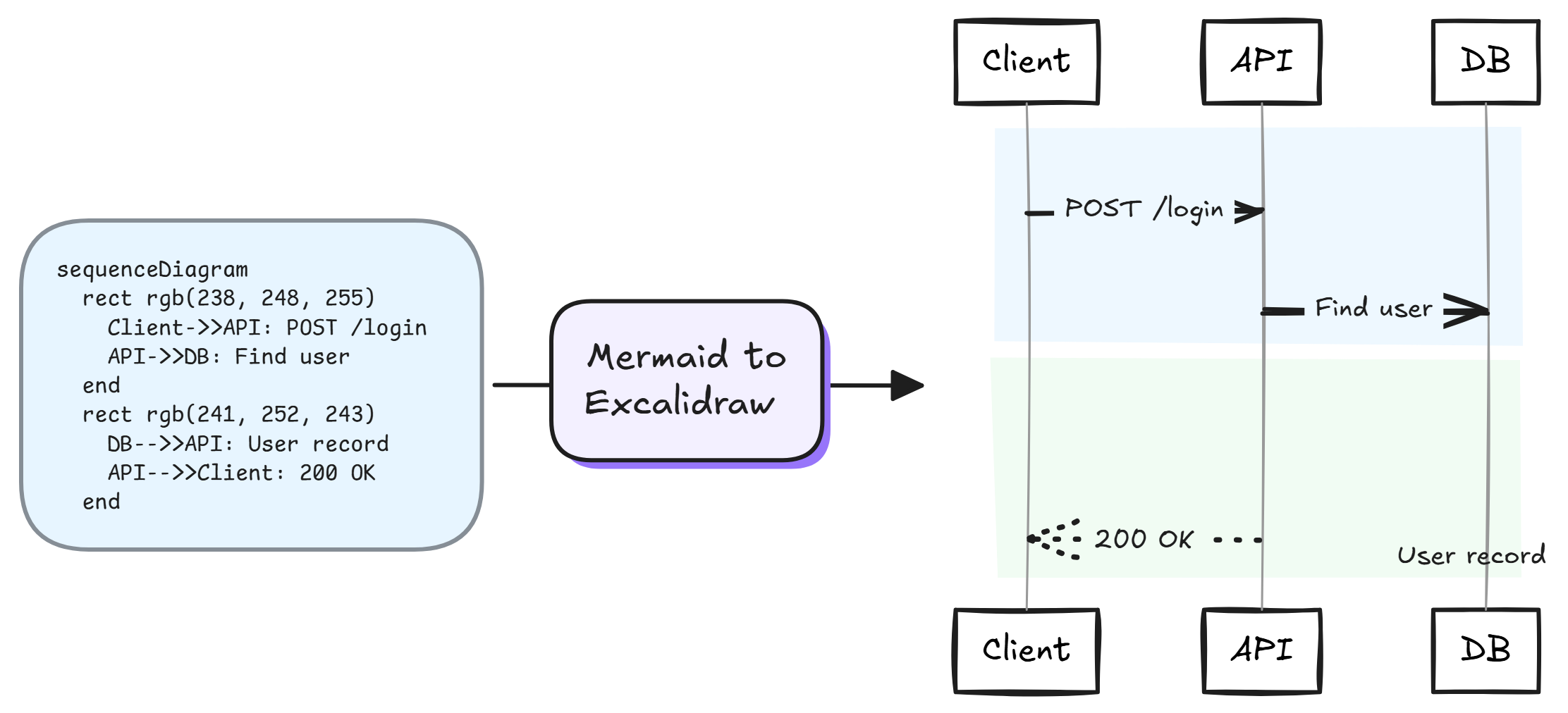
Sequence diagrams show how participants exchange messages over time. As such, they work best for any scenario where the order of events matters, like API calls or authentication flows.
How to create sequence diagrams in Mermaid?
Specify the diagram type, declare the participants, and write each message as an arrow: ->> for a request and -->> for a dashed reply. Mermaid draws the lifelines top to bottom, in the order you write the messages.
Our example:
1sequenceDiagram2 Client->>API: POST /login3 API->>DB: Find user4 DB-->>API: User record5 API-->>Client: 200 OK
Class diagrams
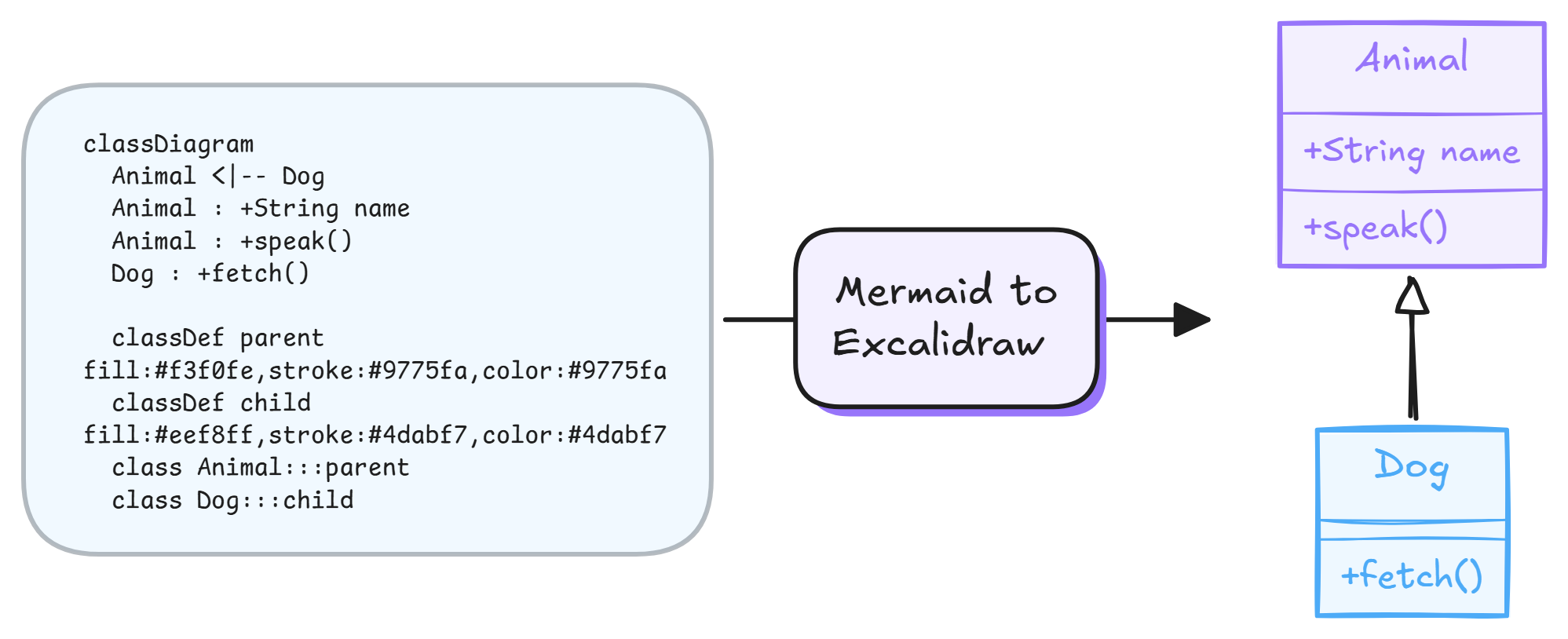
Class diagrams describe the structure of a system: classes, their attributes, methods, and relationships. Use class diagrams to plan a new module, explain a codebase to new teammates, or spot tangled dependencies (before you spend the whole weekend refactoring).
How to create class diagrams in Mermaid?
Declare the type and use symbols like <|-- for inheritance and *-- for composition. Visibility markers like + (public) and - (private) go right before attribute and method names.
Our example:
1classDiagram2 Animal <|-- Dog3 Animal : +String name4 Animal : +speak()5 Dog : +fetch()
State diagrams
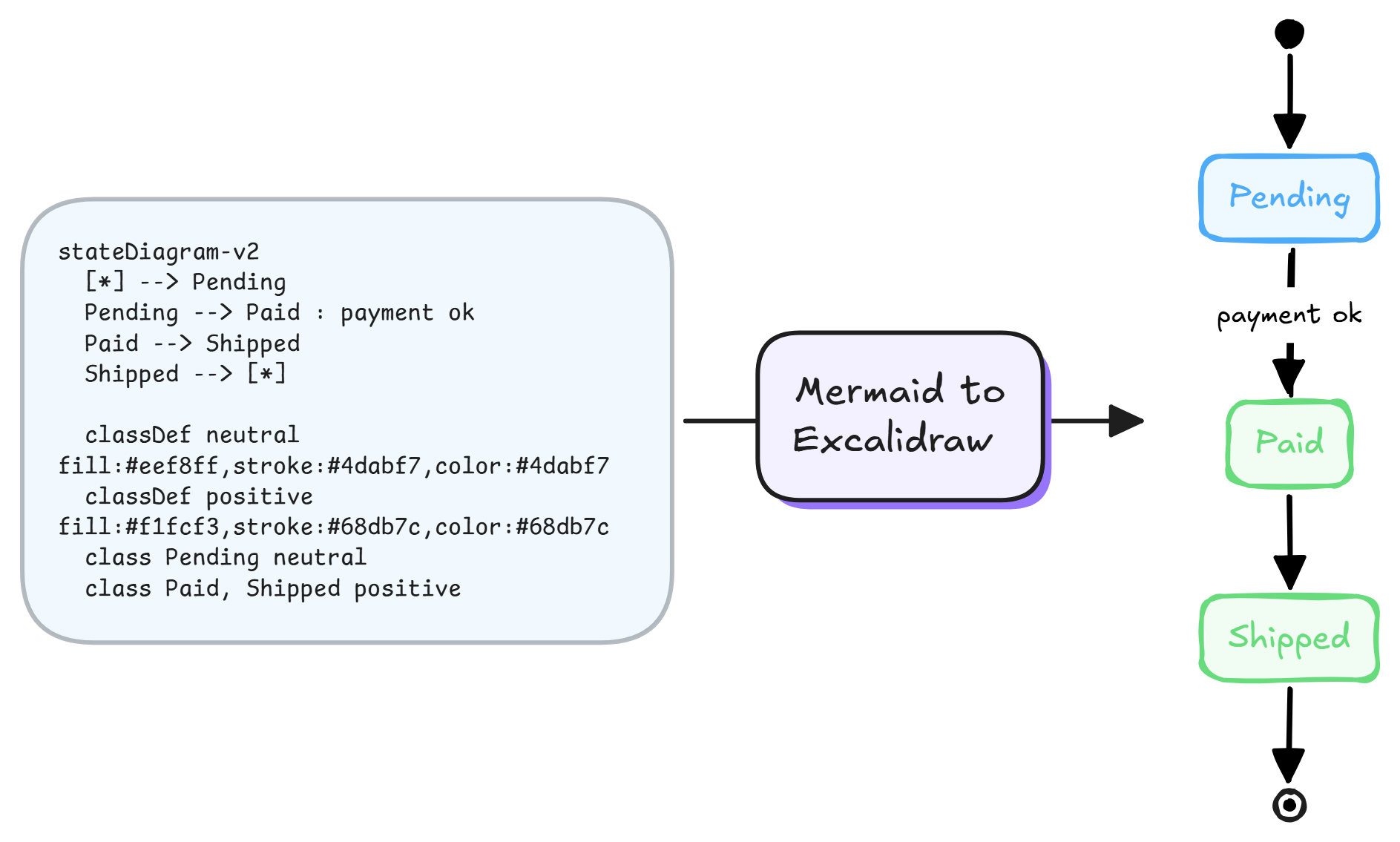
State diagrams map the states an object moves through and the events that trigger each change, like order status or user sessions. If a state has no way out, or two events lead to the same place, you see it at a glance, which makes state diagrams great for spotting edge cases.
How to create state diagrams in Mermaid?
Specify the diagram type and use [*] to mark where the flow starts and ends. --> arrows mark transitions between states. Add notes to explain why a transition happens or what it does.
Our example:
1stateDiagram-v22 [*] --> Pending3 Pending --> Paid : payment ok4 Paid --> Shipped5 Shipped --> [*]
Entity relationship diagrams
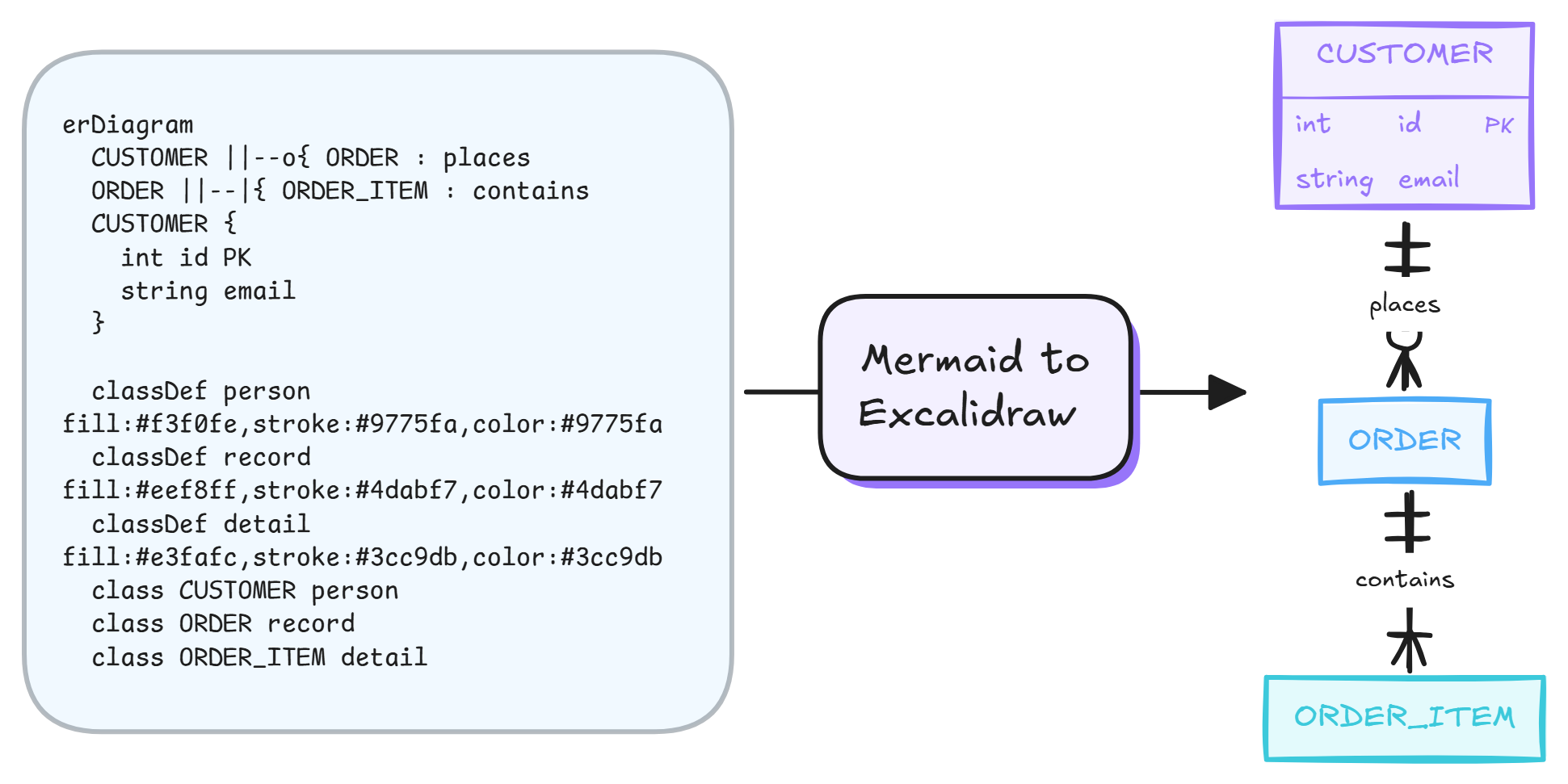
Entity relationship diagrams (ERDs) show the tables in a database and how they connect. Use them to plan a schema, review a migration, or explain a data model before anyone writes a JOIN.
How to create entity relationship diagrams in Mermaid?
Declare the type, name two entities, and link them with crow's foot symbols: || means exactly one, o{ means zero or more, and |{ means one or more. Add a label after a colon. Add attributes in curly braces, one type and name per line, and mark keys with PK or FK.
Our example:
1erDiagram2 CUSTOMER ||--o{ ORDER : places3 ORDER ||--|{ ORDER_ITEM : contains4 CUSTOMER {5 int id PK6 string email7 }
How to add colors to Mermaid diagrams
When you convert code with Mermaid to Excalidraw, diagrams are monochrome by default. To change stroke and background colors, you need to include code lines that are specific to different diagram types.
Mermaid code example | Description and supported diagrams |
|---|---|
| Defines a color style named blue. Works in flowcharts, state diagrams, entity-relationship diagrams, and class diagrams. |
| Applies the blue style to A. Works in flowcharts, state diagrams, and class diagrams. |
| Colors one node directly, without a named style. Works in flowcharts and class diagrams. |
| Adds a background color behind the messages inside the block. Works in sequence diagrams. |
| Sets a color theme for the whole diagram (default, neutral, dark, forest, or base). Excalidraw's Mermaid conversion currently doesn't support themes. |
How can specific professions use Mermaid diagrams?
Software Developers
Document APIs, request flows, class structures, and data models right in the repo. Update Mermaid diagrams in the same pull request as the code they describe.
Technical Writers
Keep diagrams in Markdown next to the docs they explain, as a single source of truth. Edit one line instead of redrawing, and render images with the Excalidraw CLI for platforms that don't support Mermaid.
Product Managers
Sketch user flows and status changes in minutes. Share them in specs and tickets without exporting or re-uploading images every time something changes.
Data Analysts
Map data pipelines, sources, and table relationships in a few lines of code. Diagrams sit next to the queries and notebooks they explain, so they're easy to keep up to date.
Tips and tricks for creating Mermaid diagrams
Best practices
- Keep one idea per diagram: Don't try to cram a whole system into one diagram. Split it into smaller diagrams, one per flow or component.
- Label components: Use short, clear node IDs and labels. They make diagrams easier to read and maintain.
- Update visuals and the code: Once you change a diagram by hand, the Mermaid source won't match. Decide which one is your source of truth and keep both up to date.
- Store Mermaid diagrams in your repo: When the diagram sits next to the code it describes, it's easier to review and update both in the same pull request.
- Build diagrams from the terminal: Convert your
.mmdfiles into editable Excalidraw scenes or SVG and PNG images with the Excalidraw CLI. Rerun the command, or add it to a script, whenever the Mermaid source changes, so your docs always show the latest version. - Use a simple color code: Highlight key elements of the diagram. Avoid decorating to keep it clear.
How to create Mermaid diagrams in Excalidraw
With Text to diagram
Quickly generate simple Mermaid diagrams and code from prompts. Built into Excalidraw, no setup needed.
- Click "More tools" in the toolbar and then "Text to diagram".
- Be specific; define the type of diagram, its purpose, and details like labels.
- You can view your AI-generated diagram as Mermaid code.
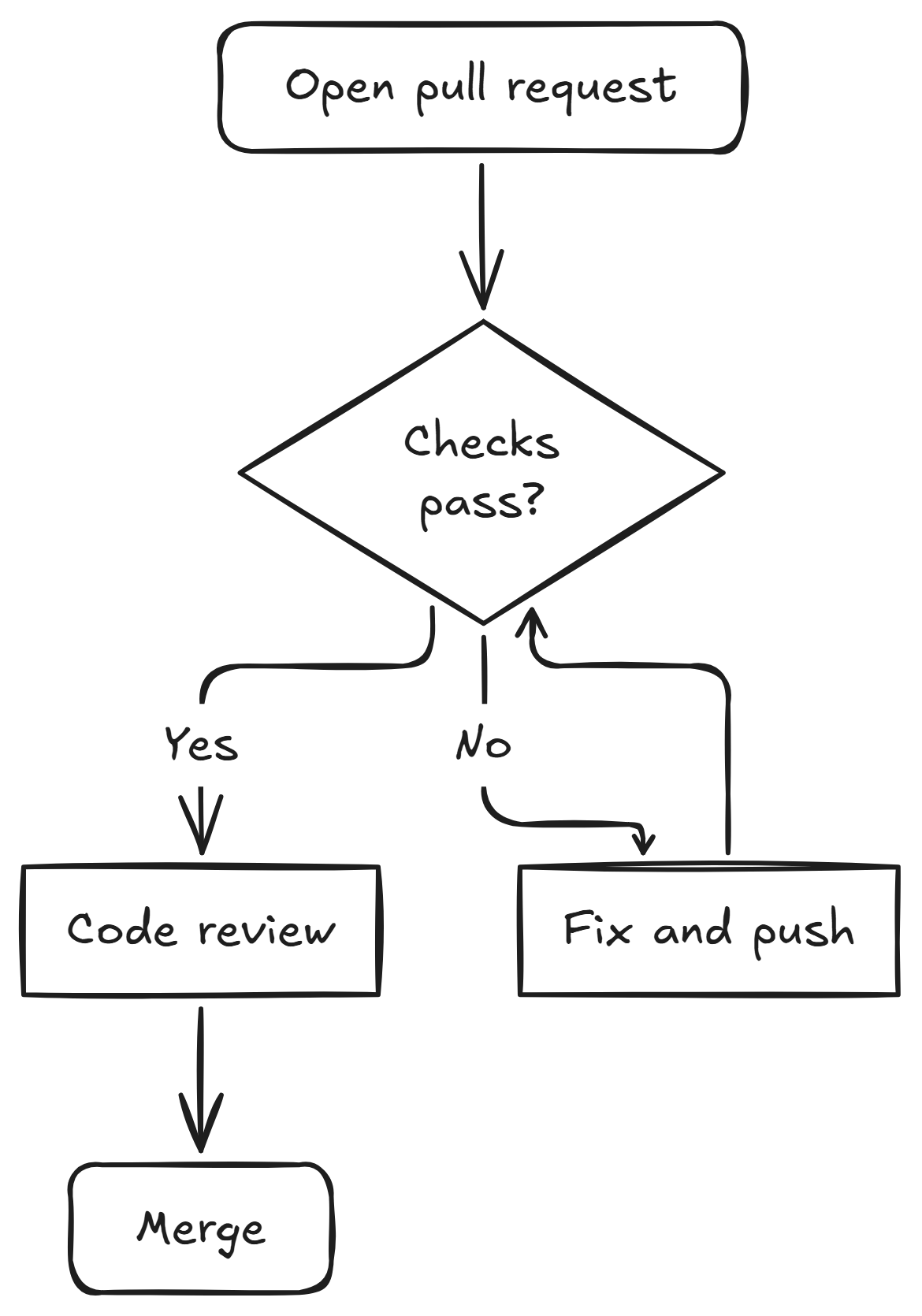
- Here's an example of a prompt and a diagram generated: "Create a top-down flowchart of a pull request process. Start with "Open pull request", then a decision: "Checks pass?" If yes, go to "Code review", then "Merge". If no, go to "Fix and push", then loop back to the checks."
With Mermaid to Excalidraw
Turn Mermaid source into Excalidraw diagrams. Great when you know how to write and edit the code.
- Click "More tools" in the toolbar and then "Mermaid to Excalidraw".
- Type in Mermaid code to generate the diagram. If you need help writing the code, click the link in the hint above the code box to open the Mermaid syntax tutorial.
- You can also paste the code onto the canvas.
- The following Mermaid code produces an identical flowchart to the one generated with the prompt:
1flowchart TD2 A[Open pull request] --> B{Checks pass?}3 B -- Yes --> C[Code review]4 B -- No --> D[Fix and push]5 D --> B6 C --> E[Merge]With the Excalidraw CLI
Convert the Mermaid files in your repo from the terminal, or automate diagram workflows with scripts. No account or subscription needed.
- Install the CLI with
npm install -g @excalidraw/cli( requires Node.js 22 or newer), or try it first withnpx @excalidraw/cli --help. - Save your Mermaid code as a
.mmdfile, or use one that's already in your repo. - Convert it to an editable Excalidraw scene:
excalidraw mermaid <file>.mmd --out <file>.excalidraw. - Need an image for your docs? Change the output to SVG or PNG:
excalidraw mermaid <file>.mmd --out <file>.svgor--out <file>.png. - Open the
.excalidrawfile in Excalidraw to adjust the layout by hand.
For example,
excalidraw mermaid docs/diagrams/checkout.mmd --out checkout.excalidrawconverts the checkout diagram from your repo and saves it ascheckout.excalidraw, a file you open in Excalidraw as editable shapes and arrows.
How to create Mermaid diagrams with MCP
Connect Excalidraw+ to an LLM through MCP to generate diagrams and source code using natural language. Add custom styling, create any diagram type, and connect local files and code repos for context.
Coding agents can also work with Mermaid in Excalidraw CLI: they run its commands in the terminal to convert Mermaid files, render images, and update scenes in your workspace.
Where to start?
▶️ YouTube tutorial
Connect Excalidraw+ to your preferred LLM. Plus a few ideas to get you started.
📄 MCP documentation
Set up MCP/API keys, authentication, permissions, and tools. Go beyond the basic integration.
⌨️ CLI documentation
Enable your agent to convert, render, and sync diagrams from the terminal.

Wrapping up
Mermaid turns diagrams into code: easy to write, review, and keep up to date. Flowcharts, sequence, class, state, and ER diagrams go from text to visuals in seconds, and popular coding tools render them anywhere.
Want more control over the layout? Paste your code into Excalidraw or convert it with the Excalidraw CLI, adjust the result by hand, and share it with your team.


Business use or teamwork? Try Plus features
💬 Comments: Share feedback on specific parts of a diagram.
🎙️ Voice Hangouts and screen sharing: Walk your team through a flow without leaving the canvas.
📺 Presentations: Turn frames into slides for a design review, ready in seconds.
📂 Work organization: Keep Mermaid diagrams in collections, with team workspaces and access control, managed through the CLI.
💡 More AI iterations: Generate and refine more diagrams with Text to diagram.
