

Online Whiteboard for Job Interviews
Visual Workspace for Candidates and Interviewers
Create collaborative assignments to make sure you hire the right candidate—or show that you're one. Prepare for the interview and take clear, visual notes, whether you apply or recruit.
How to Use Online Whiteboards for Job Interviews?
System Design Interviews
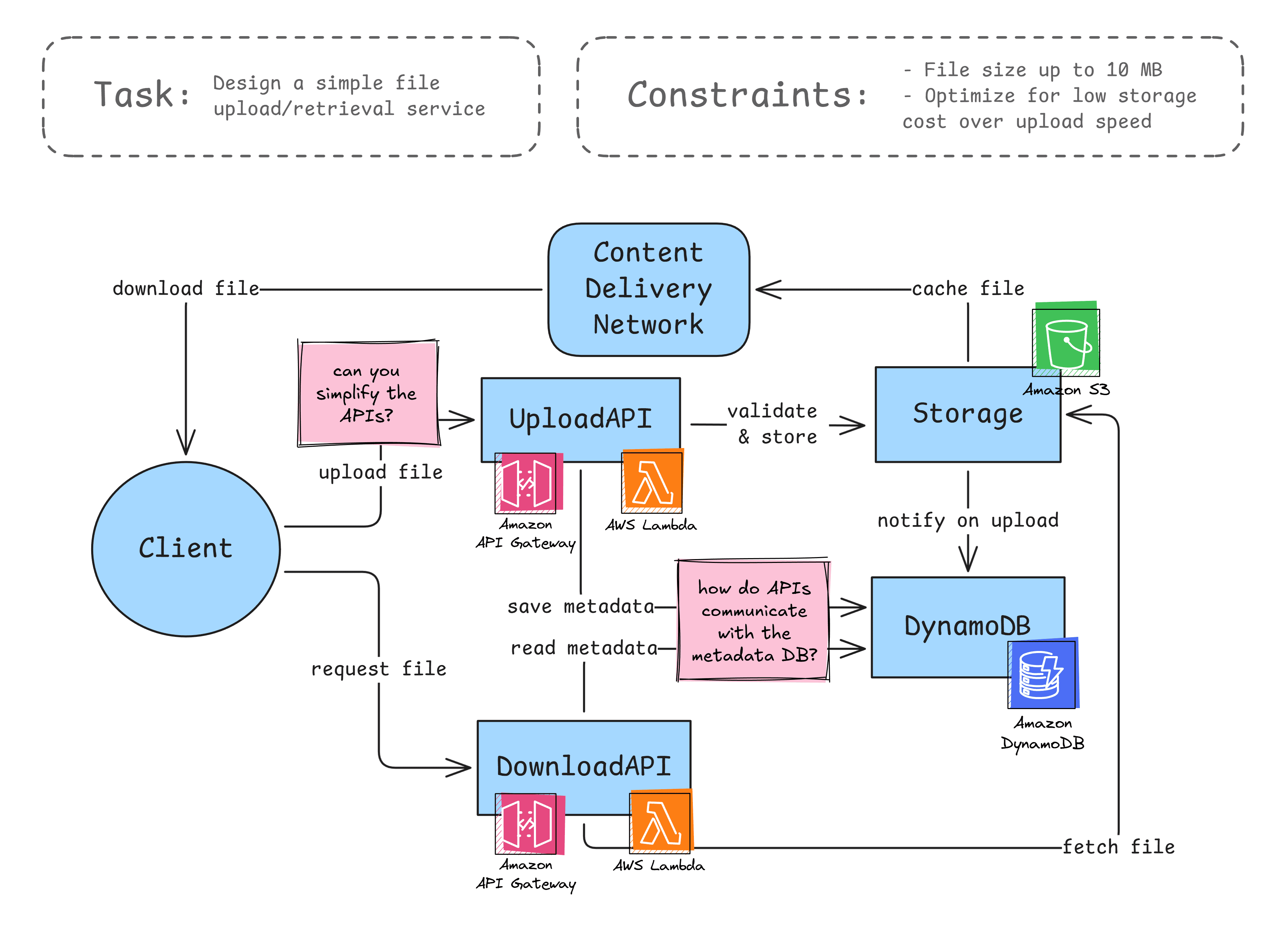
Hiring for system design and software engineering roles often involves whiteboarding tasks, done live or in advance, that simulate real-world collaboration.
Candidates sketch system components, infrastructure, and data flows for a specific product or feature. For example, they may be asked to create a ride-sharing app like Uber or design a group chat like Discord and discuss their work with the interviewer.
The goal isn’t just to test technical expertise, but clear communication, structured thinking, and adaptability. Interviewers look for how candidates make trade-offs, ask questions, respond to feedback, and evolve their design under constraints.
.png)
UX Design Interviews
Online whiteboards are commonly used in product and UX design interviews to test collaboration, user-centric thinking, and problem-solving abilities.
In a UX whiteboarding challenge, the candidate is presented with a problem to understand, solve, and discuss with the interviewers, like "simplify the checkout process" or "design a simple subscription tracker tool".
The task may be a 30-minute meeting focused on a single problem or a take-home assignment covering personas, user flows, and wireframes. In either case, the goal is to reflect the real design work.
 (1).png)
Interviewer Notes
In the whiteboarding stage, online whiteboards allow interviewers to link comments directly to the candidate's work. This ties the feedback closely to the visual design, making it easier to recall context later, highlighting key decisions, and marking areas of strength or concern.
In a broader perspective, interviewers can use a single scene to collaborate with everyone involved in hiring, collect notes for different stages, and share interview feedback.
.png)
Mapping the Hiring Process
Online whiteboards allow interviewers and hiring managers to visualize hiring stage by stage. With hiring mapped, it's easier to coordinate interviews, track progress, and keep the process consistent and transparent.
For instance, a recruitment flow diagram for software engineering roles can include resume screening, intro call, technical interview, system design session, and final debrief, along with owners, notes, and evaluation criteria for each stage.
.png)
Preparing for the Interview as a Candidate
Candidates can use online whiteboards to structure their thinking and list topics they want to cover during the interview, like their experience or expectations.
Ahead of the whiteboarding stage, they can complete mock assignments, practice sketching systems or features, and note down assumptions and key questions. Preparation builds familiarity with the tool and the task format, helping candidates feel more confident before the real interview.
Role-Specific Use Cases
Recruiters and Interviewers
Collect interview feedback and hiring context in one shared scene to keep all recruiters on the same page. Manage recruitment by mapping the process, defining requirements, assignments, and interview criteria. Onboard new hires with visual-based internal materials.
Software Developers
Create practical, engaging tasks like designing a scalable notification service or debugging an application diagram to test problem-solving and communication skills. As a candidate, visualize your thought process during software engineering interviews, explaining trade-offs and decisions as you build.
Founders
Challenge candidates with problems they would face on the job, such as creating system architectures or features for your product. Assess not just the final answers, but also how candidates think, communicate, and respond to feedback.
UX/UI Designers
Run collaborative exercises such as design critiques or feature ideation to evaluate how candidates think, communicate, and iterate. When applying for the role, demonstrate your UX thinking skills by mapping user journeys, sketching wireframes, and prioritizing user needs.
Tips and Tricks
For Interviewers
- Set up the board in advance: Create sections for the problem statement, assumptions, and notes so candidates can focus on solving, not organizing.
- Create realistic use cases: Base prompts on real scenarios, like designing a feature, workflow, or system your team might actually build.
- Focus on the process, not just results: Watch how candidates approach problems, ask clarifying questions, and adapt to your feedback and critique.
- Practice the tool internally: Run mock interviews so interviewers are fluent in the editor and don’t struggle with the interface mid-meeting.
- Test for performance and latency: Make sure drawing, typing, and moving objects feel smooth for both sides, especially on shared screens.
For Candidates
- Get familiar with the tool: Ask your recruiter which whiteboard will be used, and if they don’t specify one, choose a tool that works well for you. Practice with it before the interview to avoid wasting time and focus during the call.
- Test your setup: Check your internet connection, input devices, and browser compatibility to avoid technical distractions.
- Anticipate relevant use cases: Expect to design features or systems similar to what the company actually builds. Based on that, think about specific prompts interviewers may come up with.
- Use simple visuals: Basic boxes, arrows, and labels are faster to create and edit, while also making your ideas easier to follow.
- Practice with a timer: Rehearse in 30-60 minute sessions to adapt to pressure. If possible, ask the recruiter how long the interview will last. Leave a buffer for delays and technical issues.
- Leave room for iteration: Keep plenty of space between elements to add new ones faster as you receive feedback.
- Narrate your actions: Explain why you’re adding or changing elements on the board so interviewers can follow your reasoning.
Using Excalidraw for Job Interviews
- Quickly share scenes: To invite others to your canvas, select "Live collaboration" in the left-hand menu. Type in your nickname, start the session, and send an access link to other participants.
- Save time with shortcuts: Press R or 2 to draw a rectangle, A or 5 to draw an arrow, and T or 8 to create a text box. Press ? to see all shortcuts.
- Create nodes quickly: Select an element and press Ctrl/Cmd+Arrow key to create a connected node.
- Use libraries: From software logos to system component icons, Excalidraw libraries have many ready-made graphic elements you can use to quickly create clear visuals for your assignments.
- Follow other users on the board: Click their profile icon in the top-right corner to see where they are.
Wrapping Up
From live whiteboarding interviews and take-home assignments to interviewer notes, online whiteboards improve consistency and decision-making in the recruitment process. By simulating day-to-day work in tech teams, they help make remote hiring more effective, fair, and based on how candidates think, not just on what they know.
For candidates, whiteboards serve as an interactive environment to prepare for interviews. Take notes, complete assignments, rehearse for a practical task, and practice key skills to build confidence, organize talking points, and shine during the interview.


What's Next?
Landed the dream job or made the perfect hire? Congrats! 🙌
Now, see how you can use Excalidraw in your work ahead.
Visualize systems and processes
Turn complex interactions into clear graphs with sequence diagrams, flowcharts, software architecture diagrams, and more.
Manage and organize work
Prepare presentations, manage tasks in Gantt charts, or hold visual brainstorming sessions—draw anything you need for your daily work.
Create and design freely
Use Excalidraw for creative tasks like wireframing, education, or game design, and let imagination run free!
Onboard and build internal knowledge
Create internal materials like company structure, product architecture, user personas, or competitor analysis to get new hires off to a smooth start.
PLUS Features for Job Interviews
💬 Comments: Link feedback to the candidate's work. Discuss with others directly on the scene.
🎙️ Voice hangouts and screenshare: Hold the entire interview within a single tool. Forget connection and setup issues.
📺 Presentations: Turn canvas into a clear, easy-to-share presentation. Demonstrate your work and thought process slide by slide.
😎 Unlimited scenes: Create dedicated scenes for different job openings, roles, candidates, or use cases.
📂 Work organization: Simplify hiring and manage it centrally using scene collections, user accounts, access controls, and team workspaces.